How to Hide VBA Password from Users?


Possible to Hide Access VBA Code from Users: If your MS Access database contains Visual Basic for Applications (VBA) code, then it is possible for you to hide that code by saving your Access database in the . MDE file format. Saving a database as an .MDE file facilitates the following:

VBA code will continue to retain its functionality even after you hide it, but it cannot be viewed or edited as it is hidden. On the whole, your Access database will keep functioning as usual and you will be able to update data and run reports.

Download to Remove VBA Password

Download VBA Password Remover Tool for FREE

Creating .MDE File:

Use the following stepwise procedure for creating .MDE file:

  1. Firstly, On to “Database Tools” tab, in the “Database Tools” group, click ‘Make MDE.
  2. Next, in the ‘Save As’ dialog box, browse the location where you want to save the created .MDE file.
  3. After that, an optional step is to type some new name for the file in the File name box. (If the name that you specify already exists, then Access will prompt you to replace the existing file. Click ‘Yes’ if you want to overwrite the existing .MDE file, otherwise click ‘No’ to return to the ‘Save As’ dialog box and type some other file name)
  4. Finally, click the ‘Save’ button.

You cannot perform the following tasks in an .MDE file:

A Restriction While Saving Database as .MDE File: This is a restriction that can prevent you from saving your Access database as an .MDE file that you must have password access to the VBA code.

This is how you can hide Access VBA code from users.

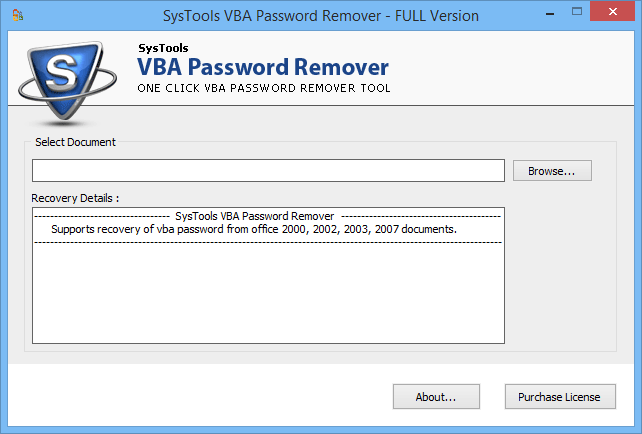
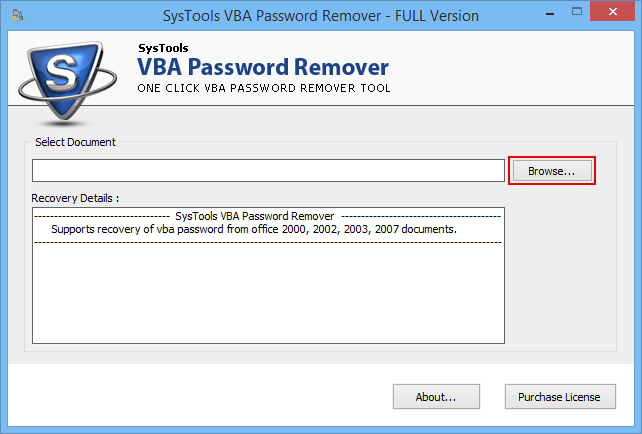
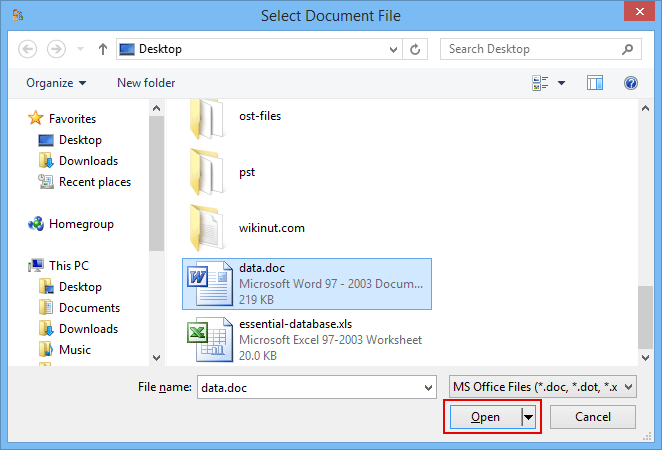
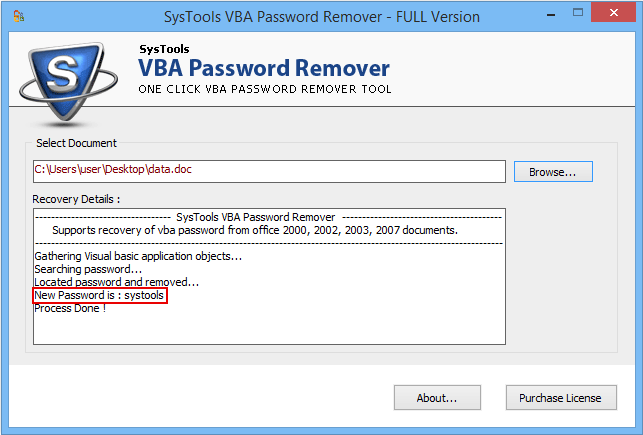
See the Process to Recover VBA Password - Download the FREE Demo Version of SysTools VBA Password Remover online to check our product without even paying a single penny. Demo Version will help you see 2 characters of the changed VBA password.

You are here: Home Page » Hide VBA Code

SysTools Software© 2010 SysTools Software. All rights reserved.
Contact Us for VBA Password Recovery, VBA Password Remover to Remove VBA Passwords instantly!

  • Sitemap
  • XML
  • KnowledgeBase
  • Resources